

Troubleshooting
Who this is for: anyone who is stuck.
Before you start: note any error code you see. Every error from Liitora has one.
Most problems can be solved in a few minutes with the error code, the run log and your AI assistant. This page shows where to start and answers the questions people ask most.
Fix a problem
Section titled “Fix a problem”- Look up the error code. The error code list says what happened, why, and how to fix it. In the app, Read about this error under a message opens the right entry.
- Check the run log. Open Runs and the failed run. Expand the failed step: you see its input, output, log lines and every HTTP call with its status. See Read run logs.
- Ask your AI assistant. Ask “Why did the last run of this workflow fail?”. It reads the run with
get_incident, which gives the failing step, the last HTTP call and the likely cause, and it can often fix the workflow for you. - Check the common failures. Common failures and how to fix them covers missing secrets, failing tests, approvals, blocked addresses, 401 answers, quotas and webhooks.
Questions people ask
Section titled “Questions people ask”Why does my workflow not run?
Section titled “Why does my workflow not run?”Only active workflows run on their schedule or webhook. Open the workflow: the status is shown next to its name, and the Overview tab lists what still blocks activation under Before it can be activated. A Paused workflow starts nothing until you select Resume. If Liitora paused it because of billing or a plan limit, it resumes by itself when that is solved.
Why did my scheduled run not start at the usual time?
Section titled “Why did my scheduled run not start at the usual time?”Check the schedule’s time zone (timezone, UTC by default) and its calendar: a skip_on calendar skips holidays and weekends. Runs missed while Liitora was unavailable are skipped, and your admins get a trigger_misfire alert. If your company reached its monthly run limit, scheduled runs stop until the next month. See Use calendars and holidays.
Can my AI assistant see my passwords?
Section titled “Can my AI assistant see my passwords?”No. It can ask for a secret and see whether it is filled in, but never the value. You type values on a Liitora page, not in the chat. Liitora also hides secret values in logs and results.
Why can’t I approve a workflow?
Section titled “Why can’t I approve a workflow?”You need the Approve workflows permission, and you cannot approve a version you made. If your AI assistant uses an API token you created, its versions count as yours. Ask a colleague.
Why is a secret value hidden from me?
Section titled “Why is a secret value hidden from me?”Showing values needs the Reveal secrets permission, which only admins have. Every showing is written to the audit log.
A run failed in the middle. Will steps run twice if I retry?
Section titled “A run failed in the middle. Will steps run twice if I retry?”Not with Retry from this step. It starts a new run at that step and reuses the saved results of the steps before it, so they are not run again. Run again starts over from the first step.
Why did my webhook sender get 401?
Section titled “Why did my webhook sender get 401?”Liitora gives one answer for every refusal. See A webhook returns 401.
Why was my request to an internal server blocked?
Section titled “Why was my request to an internal server blocked?”Liitora only calls public HTTPS addresses. See Private address blocked.
Where are runs and logs kept, and for how long?
Section titled “Where are runs and logs kept, and for how long?”In the EU, for the retention time of your plan. See Limits per plan.
Get help
Section titled “Get help”If none of this helps, report it to us from the page where it happens:
- Open the user menu (top right) and select Report a problem.
- Under What happened?, write what you did, what you expected and what you saw.
- Select Send to support. You get a reference like
LT-7K2Q9M4A; quote it if you write to us later.
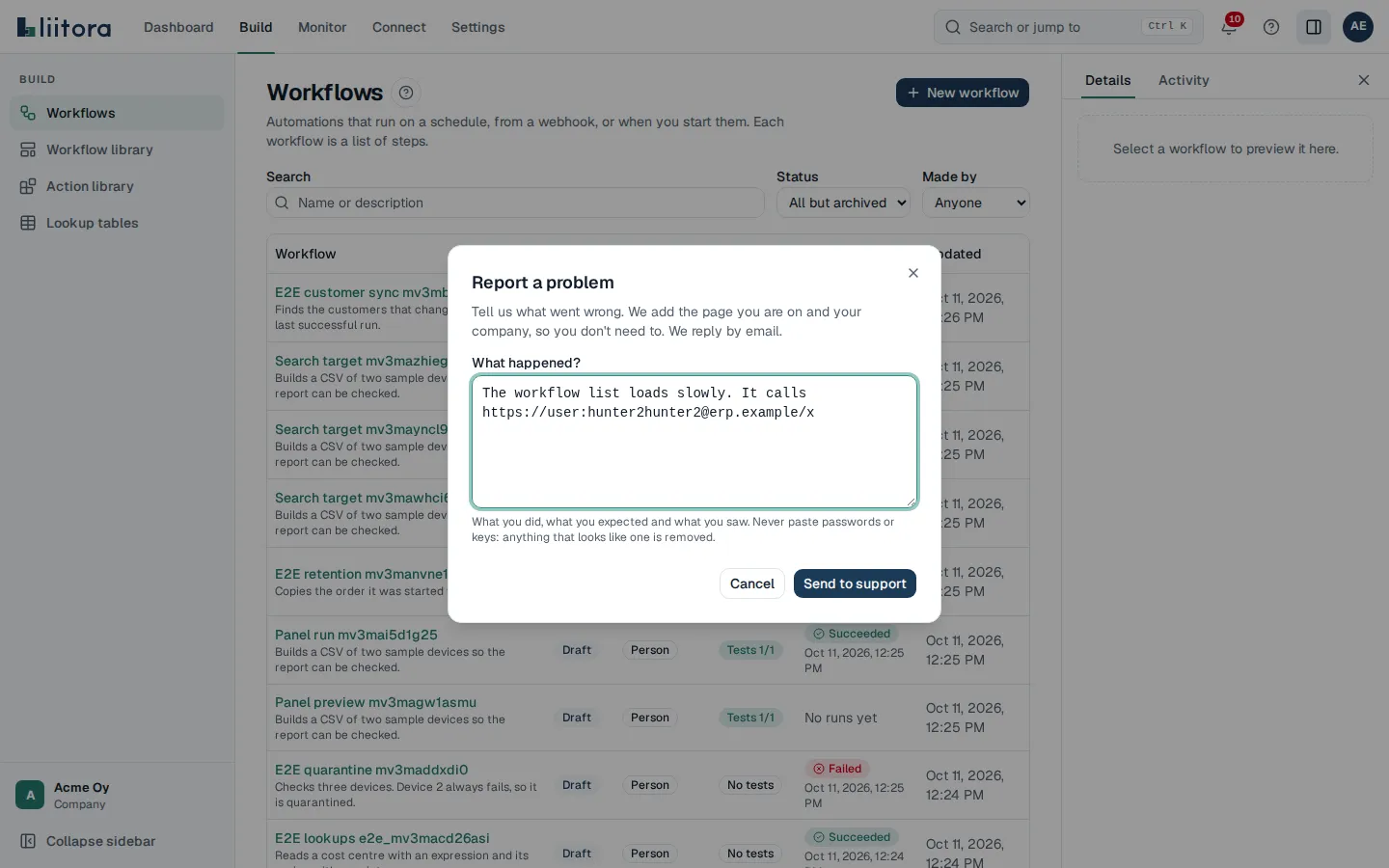
The report includes the company, the page and, on a workflow or run page, the workflow or run, so you don’t need to. Anything in your text that looks like a password or a key is removed before it is saved or sent, and the dialog tells you if that happened. In your text, include:
- the error code and the time it happened;
- the workflow name and, for a run, the address of the run page;
- what you expected to happen.
Never send passwords, keys or tokens. We never ask for them.