

Use email and PDF templates
Who this is for: people who build workflows that send formatted emails or make PDF files.
Before you start: to add or change a template you need the Activate workflows permission. Everyone who can see workflows can see the templates.
A template is a piece of HTML with places for values. A step with platform/email.send@v1 or platform/pdf.render@v1 names the template and gives the values in data. Change a template once, and the next runs of every workflow that uses it pick up the change, without a new version.
Add a template
Section titled “Add a template”-
In Settings, select Email templates.
-
Select Add a template.
-
Type a Name: lowercase letters, digits,
_and-, for examplemonthly-invoice. -
Write the Template. For example:
<h1>Invoice {{ number }}</h1><p>Hello {{ customer.name }},</p>{{#each lines}}<p>{{ this.name }}: {{ this.price }} EUR</p>{{/each}}{{#if paid}}<p>Thank you, this invoice is paid.</p>{{else}}<p>Please pay by {{ due }}.</p>{{/if}}Inside
{{#each lines}},{{ this.name }}is the name of the current line. A name withoutthis., such as{{ number }}, always means a top-level value, also inside the loop. So a line in your data can never replace the invoice number or another top-level value. -
Select Save template. If there is a mistake, such as an
{{#if}}that is never closed or a value inside a<script>element, Liitora names the line and nothing is saved.
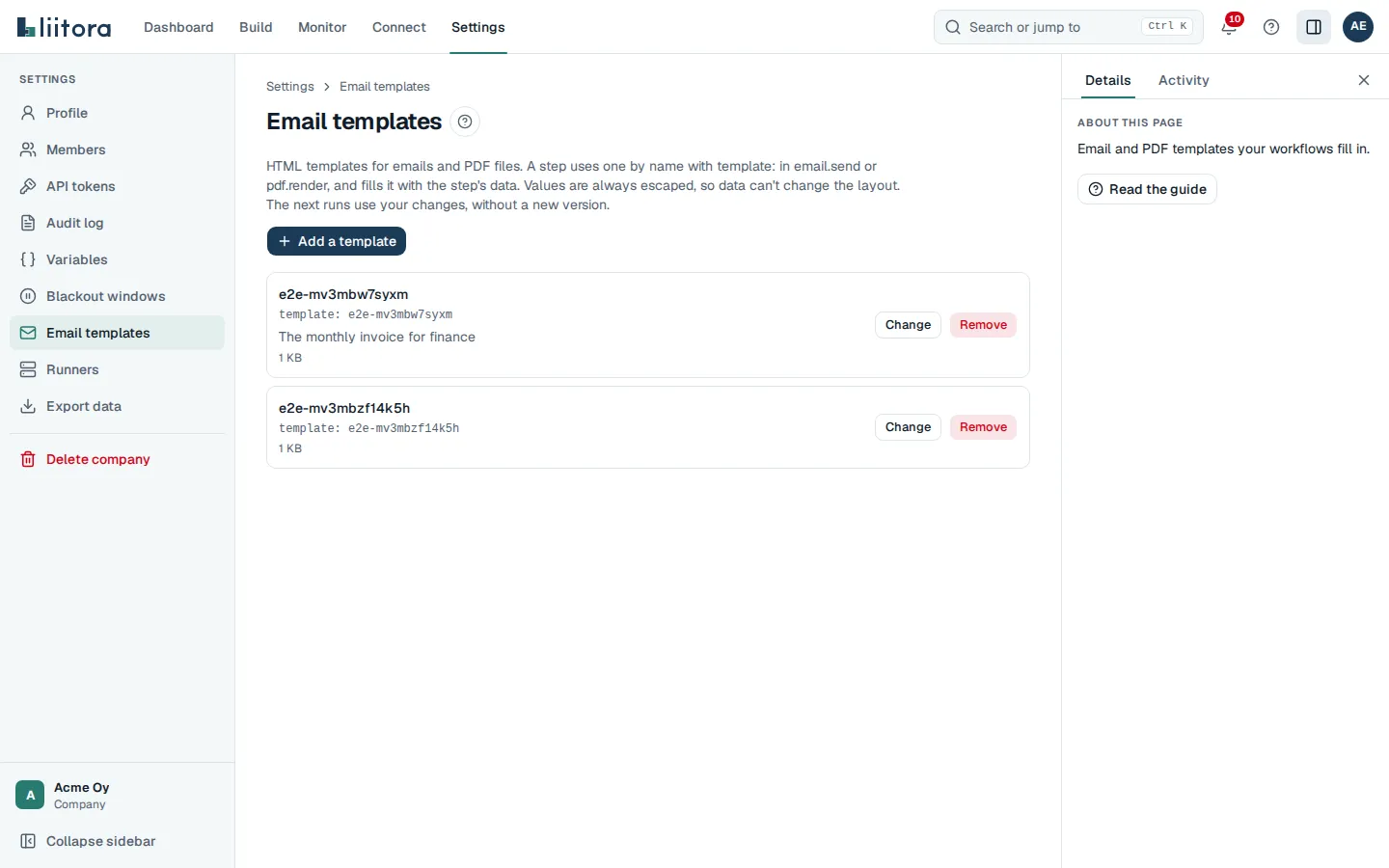
To edit a template, select Change. To remove one, select Remove. A step that still uses a removed template fails with template_not_found.
Use it in a workflow
Section titled “Use it in a workflow”Name the template in template: and give the values in data:
steps: - id: invoice name: Make the invoice PDF uses: platform/pdf.render@v1 with: template: monthly-invoice filename: invoice.pdf data: number: ${{ trigger.body.number }} customer: ${{ trigger.body.customer }} lines: ${{ trigger.body.lines }} - id: send name: Email the invoice to the customer needs: invoice uses: platform/email.send@v1 with: to: ["${{ trigger.body.customer.email }}"] subject: Your invoice template: invoice-email data: { number: "${{ trigger.body.number }}" } attachments: ["${{ artifacts.invoice.pdf }}"]Every value is escaped for the place it goes, so data such as a customer name can never change the layout or add links. A value in a link, such as <a href="{{ invoice_url }}">, can only be a web, email or phone address, or a relative one, so data can’t turn the link into a script. Values can’t go in scripts, styles or event attributes such as onclick. The template language has no other logic. See Templates for email and PDF for the details and limits.
The html input of email.send is for fixed HTML only and can’t contain ${{ }} expressions. When an email needs values, store its HTML as a template and give the values in data, as above.
Workflow tests render your stored templates too, so a test case shows whether the template and the data fit together.
Keep personal data out of templates
Section titled “Keep personal data out of templates”A template is visible to everyone in your company. Put the layout and fixed text in it, and pass names, addresses and amounts through data at run time. Liitora refuses templates that contain something that looks like a password, key or token.
With your AI assistant or the API
Section titled “With your AI assistant or the API”Your AI assistant has the tools list_templates, get_template, set_template and delete_template. Ask it, for example, “make a PDF template for our monthly device report”. It tells you what it saved.
Programs use GET /api/v1/templates, GET /api/v1/templates/{name}, PUT /api/v1/templates/{name} with {"source": "...", "description": "..."}, and DELETE /api/v1/templates/{name}. Every change is in the audit log.