

Create a connection
Who this is for: admins and editors who connect workflows to other systems, such as an ERP, a CRM or an internal API.
Before you start: you need the Manage connections permission (manage_connections). Admins and editors have it. Know the system’s HTTPS address and how it signs in (API key, username and password, token or OAuth 2).
A connection is a saved link to one of your systems: its address, how Liitora signs in, and the names of the secrets it signs in with. Workflow steps use a connection by name, so the address and credentials live in one place. Connections never hold secret values: they point at secrets by name.
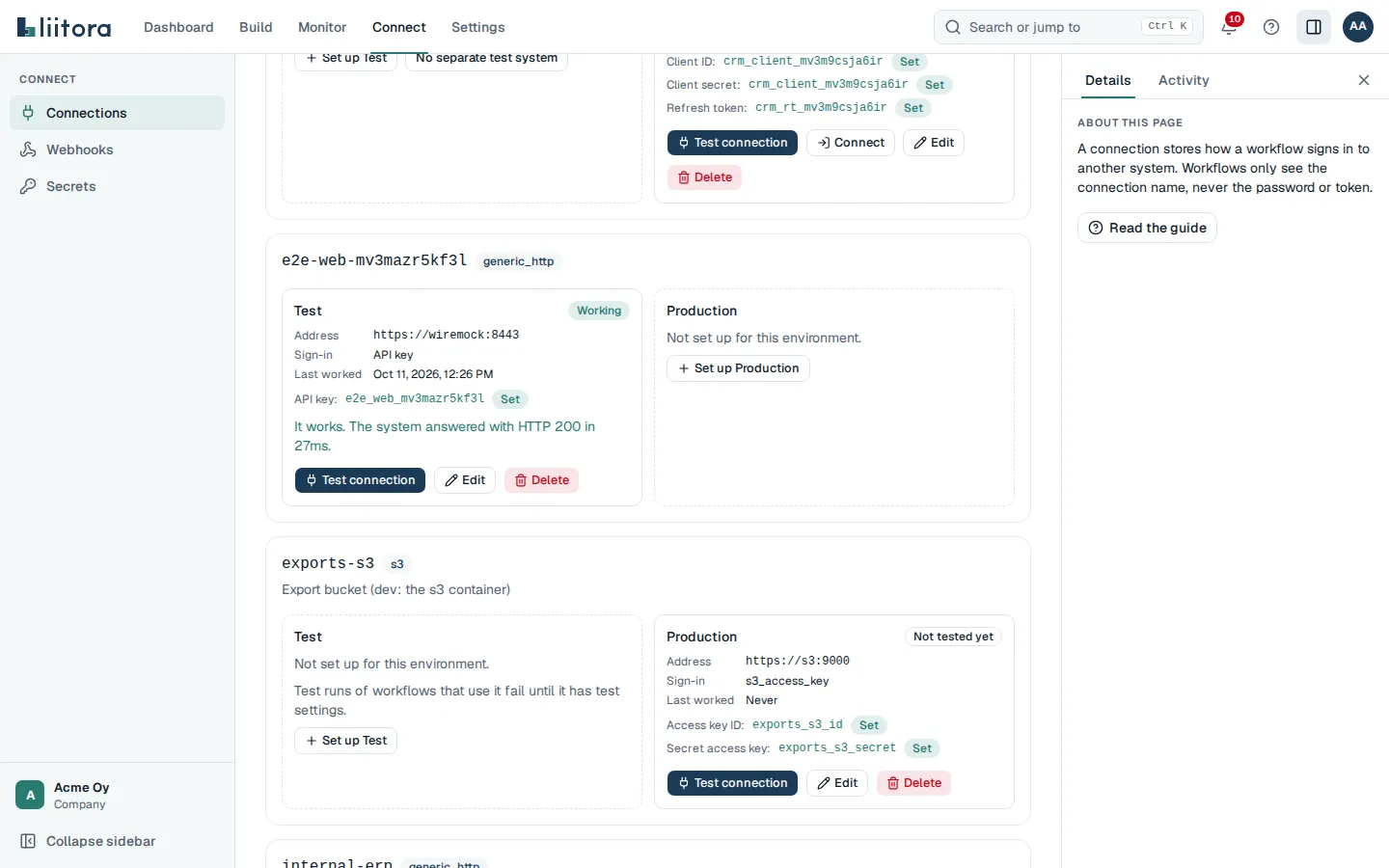
Each connection can have a Test and a Production setup with the same name. Test runs use the test setup. Production runs use the production setup. A test run never gets the production address or secrets. See Test and production settings.
Start from a template
Section titled “Start from a template”For some systems Liitora has a connection template that fills in the address, the sign-in and the hosts for you. You enter only your own details, such as your tenant ID, and pick how it signs in. With a certificate you don’t need a secret at all. In Add a connection, pick the system under Start from. There are templates for Microsoft 365 (Microsoft Graph), see Connect Microsoft 365, for AWS (IAM, IAM Identity Center, Identity Store), see Connect AWS, for AWS IAM Identity Center (SCIM), see Connect AWS IAM Identity Center, for ServiceNow, see Connect ServiceNow, for Slack, see Connect Slack, and for AI models from OpenAI, Azure OpenAI, Anthropic, Mistral and any OpenAI-compatible server, see Connect an AI model. Each template says where the system processes your data.
The settings a template sets can’t be changed on a saved connection, so it only ever reaches that system’s hosts.
Create a connection in the app
Section titled “Create a connection in the app”- Open Connections.
- Select Add a connection. Leave Start from at Set it up myself.
- Type the Name. Use lowercase letters, numbers, hyphens and underscores, for example
internal-erp. Workflows use this name. - Pick the Environment: Test or Production.
- Type the System. This is a label for what kind of system it is, for example
generic_http,vismaorhubspot. - Type a Description if you want to (optional).
- Type the Address. It must start with
https://, for examplehttps://erp.example.com/api. Paths in steps are added to the end of it. - Pick the Sign-in method and fill in its settings. See Sign-in methods below.
- Under Secrets, type the name of the secret for each field the method needs. If the secret does not exist yet, select Ask for it to create a request, then Add the value now or let a colleague fill it in.
- Type a Path for Test connection if the address itself does not answer (optional). The default is
/. - Type Other hosts it may call if the system redirects to or links other hosts (optional). Separate them with commas.
- Select Save.
To add the other environment later, find the connection on the Connections page and select Set up Test or Set up Production. The name, system and environment of a saved connection cannot change. To change them, create a new connection.
Then test the connection.
Test and production settings
Section titled “Test and production settings”Give each system a test setup that points at its test or sandbox copy, with its own test credentials, and a production setup for the real system. The two setups share the name, so a workflow uses the same name in both.
- Test runs use only the test setup. This covers a Test run in the app, the workflow’s tests, test runs started by your AI assistant, and every retry or Run again of a test run. A test run never runs in production, not even as a dry run.
- Test runs never get production credentials. A connection’s secrets belong to its environment. A test setup can’t name a secret that a production setup uses, and the other way round. Liitora refuses it with
secret_used_in_other_environment. Create a separate secret with the test credentials. - Without a test setup, test runs fail. If a connection has only production settings, a test run that uses it stops with
connection_not_found. It never falls back to production on its own. The connection card says “Test runs of workflows that use it fail until it has test settings.” - The run shows its environment. The run page has a Test or Production badge, and the runs list marks test runs. Your AI assistant sees the environment of each run too.
To move a workflow from test to production, approve and activate the version. Activation checks that every connection it uses has production settings.
When a system has no test copy
Section titled “When a system has no test copy”Some systems have no test or sandbox environment at all. For those, a person who can approve workflows (admins) can let test runs use the production settings:
- Open Connections and find the connection.
- Under Test, select No separate test system.
- Read the warning and select Use production for test runs.
The test panel then says that test runs use the production settings. While this is on:
- Test runs read from the real system with the production credentials.
- Test runs never send changes to it through this connection. A step that would write (for example a
POST,PUT,PATCHorDELETE) is held back and logged as “would have sent”, the same as in a dry run. - You can’t add test settings for that name. Turn it off first.
It isn’t available for SFTP and S3 connections, or for a connection that already has test settings. AI assistants and API tokens can’t turn it on. Anyone who can manage connections can turn it off again with Use separate test settings and Stop, AI assistants too, because that is the safer direction. Each change is written to the audit log as connection.test_use_changed.
Create a connection with your AI assistant
Section titled “Create a connection with your AI assistant”Your AI assistant can create connections with the create_connection tool, or from a template with create_connection_from_template. It sends the address, the sign-in method and the names of the secrets, never the values. The answer lists the secrets that are not set yet, with links for you to fill them in. See the MCP tools reference.
Sign-in methods
Section titled “Sign-in methods”Each method needs some settings and one or more secrets. The table shows the secret for each field, and the kind of secret to create.
| Sign-in method | Settings | Secrets |
|---|---|---|
| No sign-in | none | none |
| API key | Header or parameter name (default X-API-Key), Send the key in a header or the query string, Prefix before the key (optional, for example Token ) |
API key: an API key secret |
| Username and password | none | Username and Password: a username and password secret |
| Bearer token | none | Token: an API key secret. Sent as Authorization: Bearer <token> |
| OAuth 2 (client credentials) | Token URL, Scopes | Client ID and Client secret: an OAuth client secret |
| OAuth 2 (authorization code) | Token URL, Sign-in page URL, Scopes | Client ID and Client secret: an OAuth client secret. Refresh token: a password secret |
API key
Section titled “API key”Liitora adds the key to every request, in the header or query parameter you name. With a prefix, the prefix comes before the key, for example Authorization: Token abc123.
Username and password
Section titled “Username and password”Liitora sends the username and password as HTTP Basic authentication on every request. Pick one secret of the kind Username and password for both fields.
Bearer token
Section titled “Bearer token”Liitora sends Authorization: Bearer <token> on every request.
OAuth 2 (client credentials)
Section titled “OAuth 2 (client credentials)”Use this when the system gives you a client ID and a client secret for machine access, for example Microsoft Graph with an app registration.
- Liitora asks the Token URL for an access token, caches it and gets a new one before it expires.
- If the system answers 401, Liitora drops the token, gets a new one and tries once more.
- Scopes are the scopes to ask for, if the system needs them.
- The client ID and secret are sent with HTTP Basic by default. Some systems want them as form fields instead, and some need an
audience. Set them in the connection form (How the app sends its client ID and secret and Audience), or your AI assistant sets them when it creates the connection (auth_style: bodyandaudiencein the connection settings).
OAuth 2 (authorization code)
Section titled “OAuth 2 (authorization code)”Use this for systems where a person signs in once and gives Liitora lasting access through a refresh token.
- In the other system, register an app and get its client ID and client secret. Set its redirect address (often called redirect URI or callback URL) to your Liitora address followed by
/oauth/callback, for examplehttps://app.liitora.example/oauth/callback. - Store the client ID and secret as an OAuth client secret.
- Create the connection with the Token URL (an
httpsaddress), the Sign-in page URL (anhttpsaddress) (the other system’s authorize address) and the Scopes. Name the OAuth client secret, and pick a name for the Refresh token secret. It does not have to exist yet. - Check Sign-in page on the connection. It shows the address Liitora sends you to. If it is not the other system’s sign-in address, don’t continue and ask whoever set up the connection.
- Select Connect on the connection. You go to the other system, sign in there and allow access.
- You come back to Liitora and see “Connected”. Liitora stored the refresh token as a secret. It never shows it, and it never writes it to a log.
You need both the Manage connections and the Manage secrets permission to connect, and you must sign in yourself. AI assistants cannot connect for you.
If the other system says no, or you wait more than 10 minutes, select Connect again. Each sign-in link works once. If the other system signs you in but sends no refresh token, Liitora stores nothing and tells you. Many systems send one only when you ask for offline access, often with the offline_access scope.
Liitora then gets access tokens with the refresh token. If the system sends a new refresh token, Liitora stores it for you. If the refresh token stops working, the connection shows Not working and admins get a reminder to reconnect. Select Connect again to fix it.
Other hosts it may call
Section titled “Other hosts it may call”A connection only talks to the host in its address. If the system sends you to another host, for example a file download host, add that host under Other hosts it may call. Wildcards are not allowed. Redirects to other hosts are never followed.
Connections only reach public HTTPS addresses. Private and internal addresses (such as 10.x.x.x, 192.168.x.x or localhost) are always blocked.
Set a shared request limit
Section titled “Set a shared request limit”Many systems allow only so many calls, for example 10 a second or 5,000 a day for one account. When several workflows use the same connection, their calls add up. To stay under the limit, set it on the connection under Shared request limit:
- Calls per second: from 1 to 1000. A short burst of up to one second’s calls can go out at once.
- Calls per day: from 1 to 10,000,000. The day starts at midnight UTC.
Leave both empty for no limit. Every run of every workflow that uses the connection shares the limit. A call over the limit waits its turn instead of failing:
- A wait of up to 30 seconds happens inside the step. That time counts towards the step’s timeout.
- A longer wait, for example when the daily limit is used up, pauses the run. It shows
rate_budget_waitin its log and continues by itself, from its last finished step, when calls are allowed again. Waiting does not use up an attempt.
Every attempt counts, including retries and calls that fail. Test connection does not count and never waits.
Even without a limit, when the system answers 429 (too many requests) or 503 with a Retry-After time, every run that uses the connection waits until then, for at most 24 hours. The connection’s card shows how many calls were made today and when a pause ends. See Runs wait for a request limit.
Use a connection in a workflow
Section titled “Use a connection in a workflow”A step names the connections it uses under connections:. The key is the action’s slot, the value is the connection name:
steps: - id: fetch name: Fetch the open orders uses: platform/http.request@v1 connections: { api: internal-erp } with: method: GET url: /ordersIf the connection’s address is https://erp.example.com/api, the step sends GET https://erp.example.com/api/orders, with the sign-in added for you. The path is always added after the address’s own path, even when it starts with /. Paths with .. are refused. The step never sees the credentials. See the http.request action.
A workflow cannot be activated while a connection it uses does not exist in production. The error code is connection_missing.
Who can change where a secret is sent
Section titled “Who can change where a secret is sent”A connection sends its secrets to its address, its other hosts and its token URL. Choosing those for a secret is as strong as seeing the secret, so Liitora checks who makes the change:
| Change | Who can make it |
|---|---|
| Name a secret that has no value yet | anyone who can manage connections, AI assistants too |
| Name a secret whose value you saved yourself | you |
| Name a secret someone else saved, or change the address, other hosts, token URL, sign-in method or secrets of a connection that uses one | a person who can reveal secrets (admins) |
| Change the address, other hosts, token URL, sign-in method or secrets of a production connection | a person who can approve workflows (admins) |
| Let test runs use a production connection (No separate test system) | a person who can approve workflows (admins) |
| Change the description, health check path, scopes, shared request limit or other settings that don’t change where anything goes, or stop test runs from using a production connection | anyone who can manage connections |
| Name a secret Liitora manages for you, such as a webhook signing secret | nobody |
AI assistants and API tokens never pass the admin rows, even with an admin’s own sign-in. When a change is refused, the message says which secret or rule it was. Ask an admin to make the change, or use a new secret and fill it in yourself.
Every change to where a connection sends things is written to the audit log as connection.binding_changed, with the hosts and secret names before and after (never values).
The Token URL must be on the connection’s own address, on one of its Other hosts it may call, or on Microsoft’s sign-in host (login.microsoftonline.com). Liitora refuses any other token URL, so a client secret or refresh token never goes to a host the connection doesn’t already trust.
A Connect sign-in is tied to the connection’s settings when you select Connect. If someone changes its address, token URL or secrets before you come back, the sign-in is refused and you select Connect again.
Edit or delete a connection
Section titled “Edit or delete a connection”- To change the address, method or secrets, select Edit on that environment, change the fields, and select Save. Some changes need an admin, see Who can change where a secret is sent.
- To delete it, select Delete and then Delete the connection. Workflows that use it stop working in that environment until you add it again. The secrets it uses are kept.