

Connect Microsoft 365
Who this is for: admins who connect Liitora to Microsoft 365 and Entra ID, for example to check user accounts, read group members, send mail from a shared mailbox or read SharePoint files.
Before you start: you need the Manage connections permission in Liitora (Admin and Editor). In Microsoft Entra you need a role that can register apps and grant admin consent, for example Cloud Application Administrator or Privileged Role Administrator. To limit mail, you also need the Exchange Administrator role.
Liitora reaches Microsoft 365 through Microsoft Graph, as an app you register in your own tenant. Liitora signs in as that app, with no user. The app can do only what your admin grants it, and you can remove it at any time in the Microsoft Entra admin center.
The Microsoft 365 (Microsoft Graph) connection template fills in everything that is the same for every company. You enter only your tenant ID and your app’s client ID, and pick how Liitora signs in:
- Certificate (recommended). Liitora creates a key pair for the connection. The private key stays in Liitora’s key store, where no person and no program can read it, not even us. You download only the certificate and upload it to your app registration. Microsoft recommends certificates over client secrets.
- Client secret. You create a client secret in your app registration and store it in Liitora as a secret. It works, but a client secret is a password that someone has copied, so use it only if you can’t use a certificate.
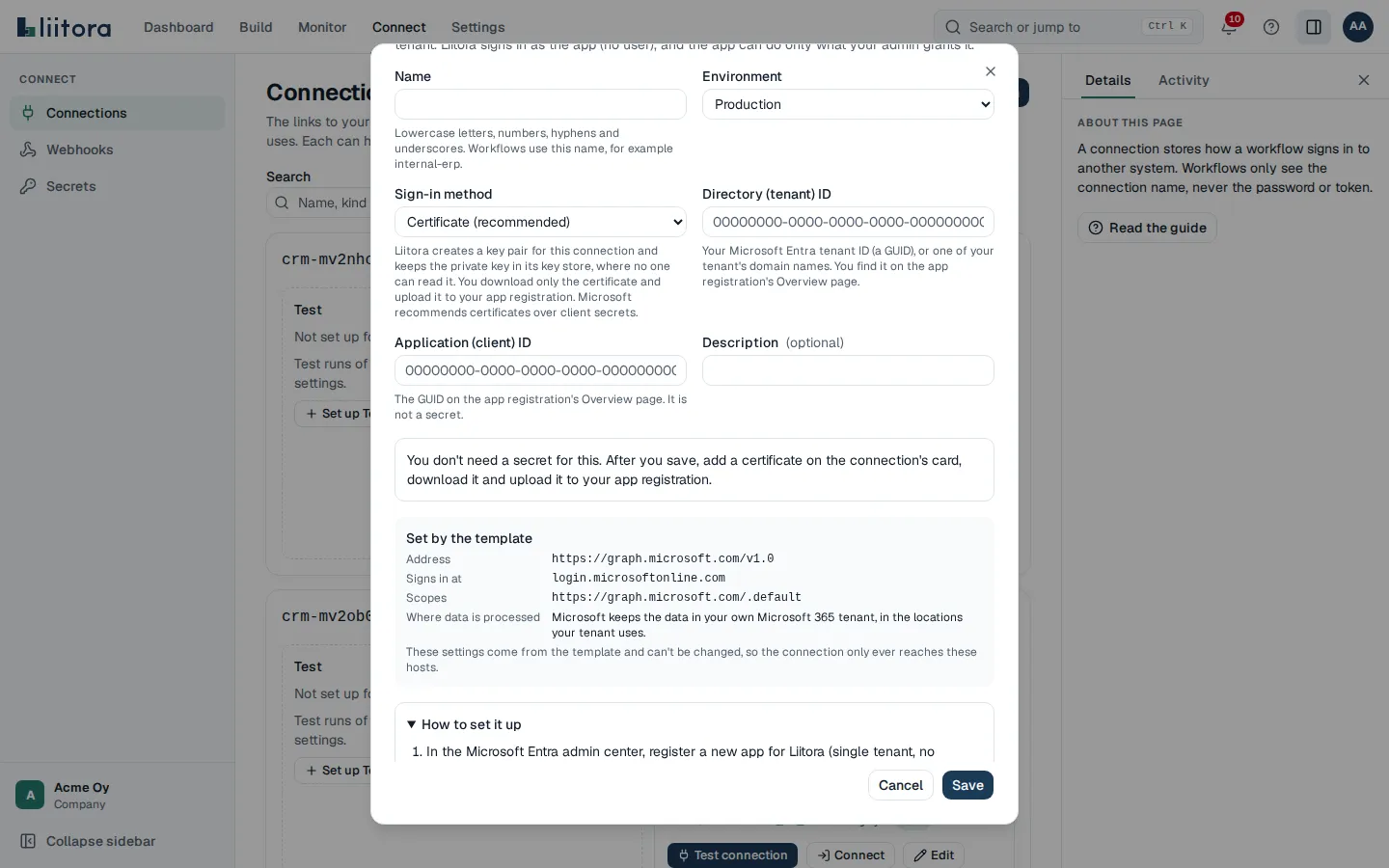
What the template sets for you
Section titled “What the template sets for you”These settings come from the template and can’t be changed, so the connection only ever reaches Microsoft’s hosts:
| Setting | Value |
|---|---|
| Address | https://graph.microsoft.com/v1.0 |
| Sign-in | OAuth 2 client credentials at https://login.microsoftonline.com/<your tenant ID>/oauth2/v2.0/token, with a certificate or a client secret |
| Scope | https://graph.microsoft.com/.default, which means “the permissions your admin granted to the app” |
| Other hosts it may call | none |
The tenant ID must be your tenant’s GUID (like 00000000-0000-0000-0000-000000000000) or one of your tenant’s domain names (like contoso.onmicrosoft.com). Anything else is refused, so a typo can’t send the sign-in anywhere else. The client ID must be the app’s GUID.
Register the app in Microsoft Entra
Section titled “Register the app in Microsoft Entra”- Sign in to the Microsoft Entra admin center.
- Go to Identity > Applications > App registrations and select New registration.
- Give it a name people will recognise, for example
Liitora workflows. - Under Supported account types, pick Accounts in this organizational directory only.
- Leave Redirect URI empty. Liitora signs in without a user, so it needs none.
- Select Register.
- On the app’s Overview page, copy the Directory (tenant) ID and the Application (client) ID.
You add the certificate to the app later, after Liitora has made it.
Give the app only what it needs
Section titled “Give the app only what it needs”Under API permissions, select Add a permission > Microsoft Graph > Application permissions, add only the permissions for what your workflows do, and then select Grant admin consent.
| What the workflow does | Microsoft Graph application permission |
|---|---|
| Read user accounts (for example, check whether a leaver’s account is disabled) | User.Read.All |
| Read groups and their members | GroupMember.Read.All |
| Read a user’s last sign-in | AuditLog.Read.All together with User.Read.All |
| Disable a user account (offboarding) | User.EnableDisableAccount.All together with User.Read.All, and maybe an admin role (see Disable a Microsoft 365 account) |
| Sign a user out everywhere | User.RevokeSessions.All |
| Remove members from groups | GroupMember.ReadWrite.All |
| Send mail from a shared mailbox | Mail.Send, limited to that mailbox (see below) |
| List and download files in SharePoint or OneDrive | Files.Read.All |
| Upload files to SharePoint or OneDrive | Files.ReadWrite.All, and Sites.ReadWrite.All for files over 4 MiB |
| Read or write files in chosen SharePoint sites only | Sites.Selected, with access granted per site (see below) |
Leave out everything else. Avoid broad permissions such as Directory.ReadWrite.All, Mail.ReadWrite or Sites.ReadWrite.All unless a workflow really needs them. Microsoft lists only Sites.ReadWrite.All for uploading files over 4 MiB, so grant it only if a workflow uploads files that large. Liitora’s ready-made Microsoft 365 actions each list the permission they need, so you can grant it when you start using one.
Each permission applies to your whole tenant unless you limit it, so limit mail and SharePoint as described next.
Limit which mailboxes the app can send from
Section titled “Limit which mailboxes the app can send from”Mail.Send granted in Entra lets the app send as any user. Use RBAC for Applications in Exchange Online instead, so the app can send only from the mailboxes you choose.
-
Don’t grant
Mail.Sendunder API permissions in Entra. If you already did, remove it. The permissions from Entra and from Exchange add up, so an Entra grant would undo the limit. -
In the Microsoft Entra admin center, open Enterprise applications, find the app, and copy its Application ID and Object ID from there (not from App registrations, which shows a different object ID).
-
Connect to Exchange Online PowerShell (
Connect-ExchangeOnline) as an Exchange administrator. -
Tell Exchange about the app:
Terminal window New-ServicePrincipal -AppId <Application ID> -ObjectId <Object ID> -DisplayName "Liitora workflows" -
Create a scope for the mailboxes it may send from, for example one shared mailbox:
Terminal window New-ManagementScope -Name "Liitora senders" -RecipientRestrictionFilter "PrimarySmtpAddress -eq 'reports@contoso.com'" -
Give the app the send role, only in that scope:
Terminal window New-ManagementRoleAssignment -App <Object ID> -Role "Application Mail.Send" -CustomResourceScope "Liitora senders" -
Check it.
InScopeshould beTruefor the shared mailbox andFalsefor any other mailbox:Terminal window Test-ServicePrincipalAuthorization -Identity <Object ID> -Resource reports@contoso.com
Changes can take between 30 minutes and 2 hours to reach the app.
The action ms365.send-mail then sends from that mailbox. A step that tries another mailbox fails with a missing permission.
Limit SharePoint to chosen sites
Section titled “Limit SharePoint to chosen sites”With Sites.Selected, the app starts with access to no sites. An admin then grants it access to each site it needs, as read or write.
-
Grant the app
Sites.Selectedunder API permissions and select Grant admin consent. -
For each site, an admin grants the app a role on that site with Microsoft Graph, for example with Graph Explorer or Microsoft Graph PowerShell signed in as a SharePoint administrator. Use
readif the workflow only reads files:POST https://graph.microsoft.com/v1.0/sites/{site-id}/permissionsContent-Type: application/json{"roles": ["read"],"grantedToIdentities": [{"application": { "id": "<Application (client) ID>", "displayName": "Liitora workflows" }}]}
Granting site access needs a stronger permission (Sites.FullControl.All). Give that to the admin tool you use for this step, never to the Liitora app.
Add the connection in Liitora
Section titled “Add the connection in Liitora”- Open Connections and select Add a connection.
- Under Start from, pick Microsoft 365 (Microsoft Graph).
- Type the Name, for example
m365. Workflows use this name. - Pick the Environment. Add a Test setup too if you test workflows against a separate test tenant.
- Leave Sign-in method at Certificate (recommended).
- Type the Directory (tenant) ID and the Application (client) ID.
- Select Save. The connection’s card now says it has no certificate yet.
- On the card, under Certificates, select Add a certificate. Liitora makes the key pair and the certificate. It is valid for 12 months.
- Select Download certificate. You get a
.pemfile with the public certificate only. It contains nothing secret.
Your AI assistant can do steps 1 to 8 with the create_connection_from_template and add_connection_certificate tools. It asks you for the tenant ID and the client ID. See the MCP tools reference.
To use another tenant later, add a new connection from the template. The tenant ID, the client ID and the sign-in method of a saved connection are fixed in the app.
Upload the certificate to your app registration
Section titled “Upload the certificate to your app registration”- In the Microsoft Entra admin center, open the app under App registrations.
- Go to Certificates & secrets > Certificates and select Upload certificate.
- Pick the
.pemfile you downloaded, add a description such asLiitora, and select Add. - Check that the Thumbprint Microsoft shows is the same as the one on the connection’s card in Liitora.
- In Liitora, select Test connection. It signs in as the app and says It works. Liitora signed in to the system. It doesn’t read any data, because your app may not be allowed to read anything a test could use.
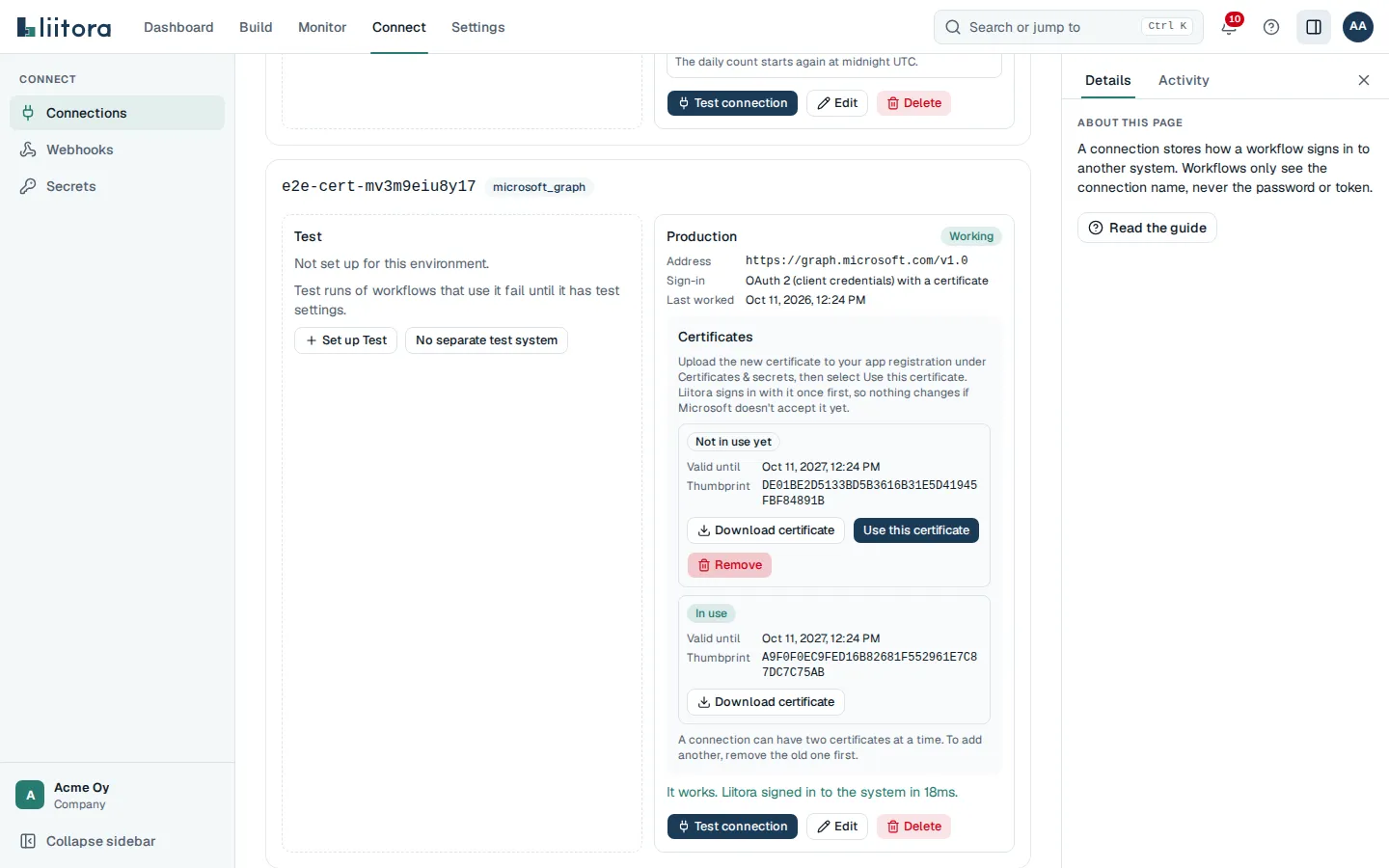
If the test fails with invalid_client, Microsoft doesn’t have this certificate yet, or the client ID is wrong. Changes in Entra can take a few minutes to reach sign-in. With any other error, check the tenant ID and that the app is registered in that tenant.
Change the certificate before it expires
Section titled “Change the certificate before it expires”Each certificate is valid for 12 months. Liitora reminds your company’s admins by email 30, 7 and 1 days before the certificate in use expires, and on the day it does. A connection can have two certificates at a time, so you can change it without a break:
- On the connection’s card, select Add a certificate. The new one says Not in use yet. Liitora still signs in with the old one.
- Select Download certificate on the new one, and upload it to the app registration as above. Keep the old certificate there for now.
- In Liitora, select Use this certificate on the new one. Liitora signs in with it once first. If Microsoft doesn’t accept it yet, you get the error
certificate_not_acceptedand nothing changes, so wait a few minutes and try again. - When the new one is in use, select Remove on the old one. Liitora deletes it and its private key.
- Delete the old certificate from the app registration too.
You can’t remove the certificate in use while you have another one. Switch first. If a certificate has expired, Liitora refuses to sign in with it, and the connection shows that it needs a new certificate.
Liitora can’t import a certificate or a private key you made yourself. That way, no private key for your connection ever exists outside Liitora’s key store.
Use a client secret instead
Section titled “Use a client secret instead”If you can’t use a certificate:
- In the app registration, go to Certificates & secrets > Client secrets and select New client secret. Pick a short expiry. Copy the secret’s Value now: Microsoft shows it only once.
- In Liitora, open Secrets and add a secret of the kind OAuth client, for example
m365_oauth. Put the Application (client) ID in Client ID and the client secret’s value in Client secret. Set its expiry to the client secret’s expiry, so you get a reminder before it runs out. See Add a secret. - Add the connection as above, but pick Client secret as the Sign-in method and type only the Directory (tenant) ID.
- Under Secrets, type
m365_oauthfor both Client ID and Client secret, or select Suggest names. If the secret doesn’t exist yet, select Ask for it so someone adds the value. - Select Save, then Test connection.
If the test fails with invalid_client, the client ID or the client secret is wrong, or the secret has expired. Your AI assistant never sees the client secret.
Excel and Teams
Section titled “Excel and Teams”The ready-made actions don’t change Excel tables in workbooks, because Microsoft documents that only for a signed-in user, not for an app on its own. To post a message to a Teams channel, add a Workflows webhook to the channel in Teams and send to its address with webhook.send. It needs no Microsoft Graph permission.
When Microsoft slows you down
Section titled “When Microsoft slows you down”Microsoft Graph limits how many requests an app can make. When a workflow goes over the limit, Graph answers 429 Too Many Requests with a Retry-After time. Liitora waits that long and tries again when the wait is up to a minute. Longer waits end the call, and the step’s own retry: setting decides what happens next. Keep workflows that read many users or files on a schedule that doesn’t overlap with other heavy jobs.
Sources
Section titled “Sources”Written from Microsoft’s own documentation:
- Microsoft identity platform and the OAuth 2.0 client credentials flow
- Microsoft identity platform application authentication certificate credentials
- Add and manage application credentials in Microsoft Entra ID
- Register an application in Microsoft Entra ID
- Overview of Microsoft Graph
- Microsoft Graph permissions reference
- Microsoft Graph throttling guidance
- Role Based Access Control for Applications in Exchange Online
- Selected permissions in OneDrive and SharePoint