

Page: Fill a secret
Who this is for: people who got a link from their AI assistant or a colleague to add a password or API key.
Before you start: you need a Liitora account in the same company. To save the value you need the Manage secrets permission (Admin and Editor).
When your AI assistant needs a credential, it asks Liitora for a secret and shows you a link like https://<your Liitora address>/s/fill/.... The link opens this page. It is kept small on purpose and shows only the fields you need. If you are not signed in, Liitora asks you to sign in first and then brings you back.
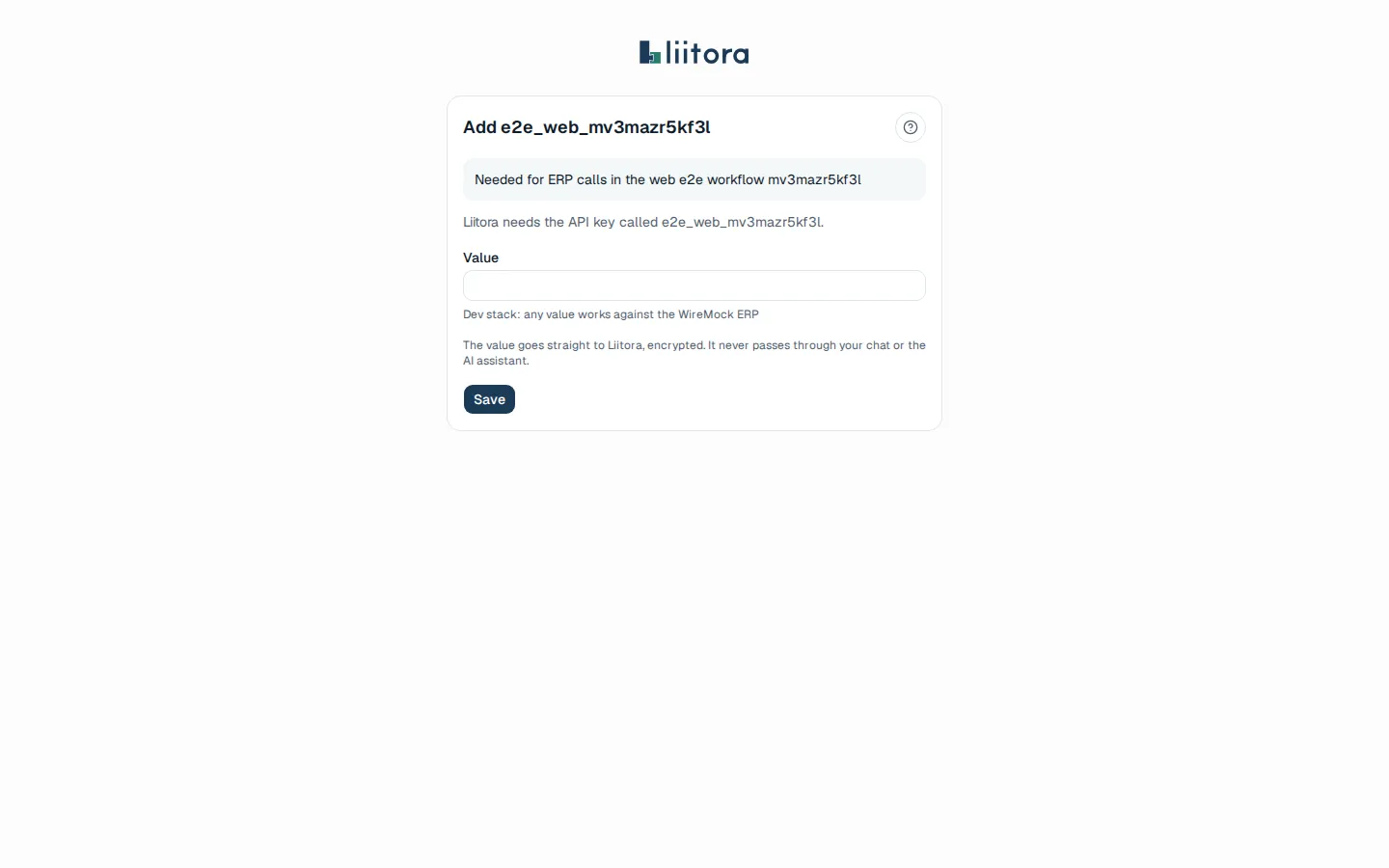
What you see
Section titled “What you see”- The title Add and the secret’s name.
- Why it is needed, in the words of whoever asked.
- Liitora needs the API key called …: the kind and name.
- Used by: the workflows that use it, when there are any.
- The fields of that kind, for example Value, or Username and Password, with the hint on where to find it.
- A note that the value goes straight to Liitora, encrypted, and never passes through your chat or the AI assistant.
Select Save. The page says Saved. Go back to your chat. Your assistant can see that the secret is set, but never the value.
Messages you may see
Section titled “Messages you may see”| Message | What to do |
|---|---|
| Send this request to your admin | You can’t add secret values. Select Copy the link or Email the link and send it to an admin or editor. The link works for them after they sign in. |
| This link has expired | A link lasts 7 days. Ask your AI assistant for a new link, or add the value on the Secrets page. |
| This link doesn’t work | The link is mistyped, or it belongs to another company. Ask for a new link. |
| This secret is already saved | Nothing else to do. To change the value, rotate it on the Secrets page. |