

Page: Connections
Who this is for: people who set up and check the links between Liitora and your other systems.
Before you start: everyone can see this page. To add, edit, test or delete a connection you need the Manage connections permission (Admin and Editor).
A connection tells Liitora how to reach one of your systems: its address, how Liitora signs in, and which secrets it uses. Workflows use a connection by its name. Each connection can have a Test and a Production setup side by side: test runs use the test setup, real runs use production.
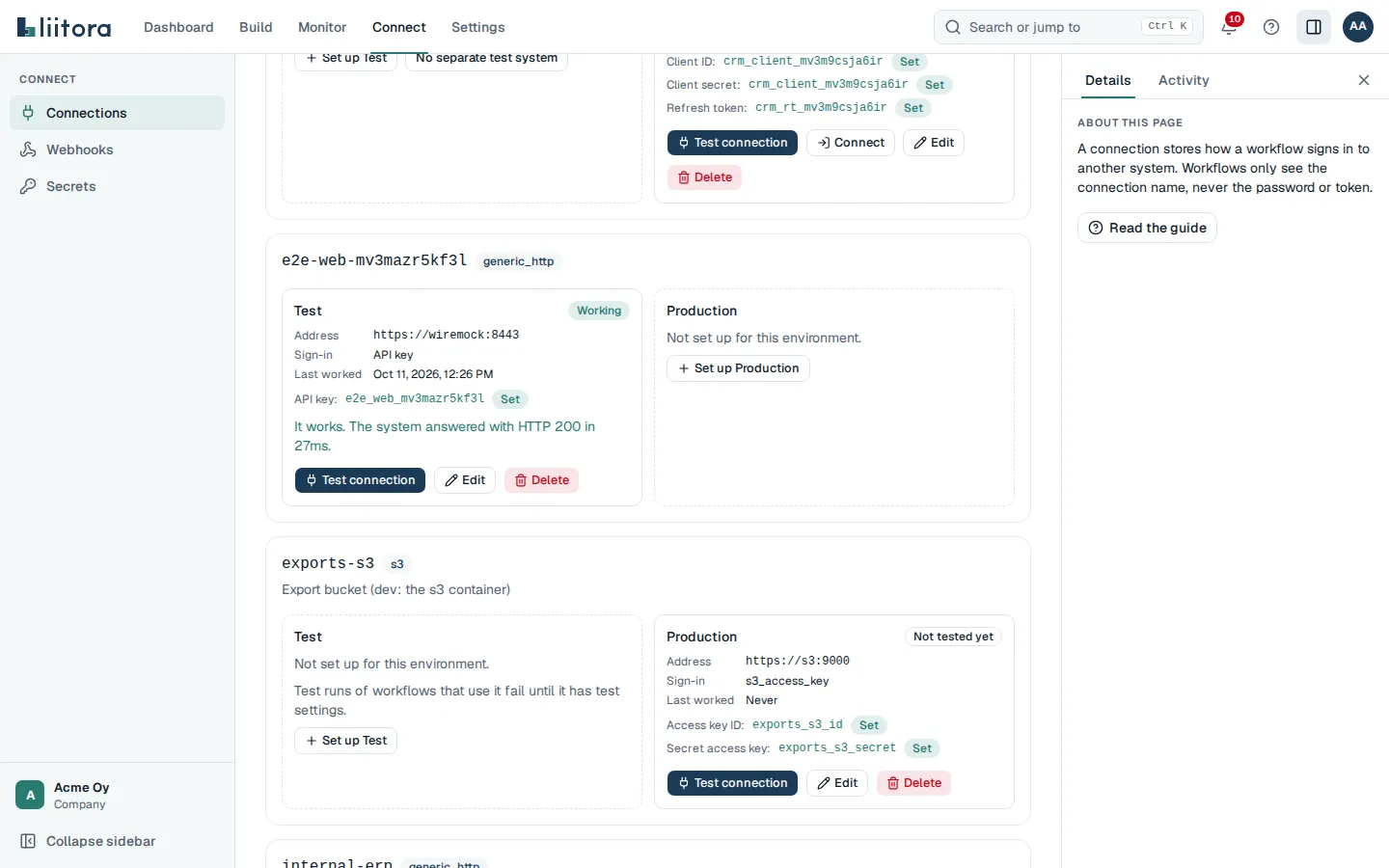
With seven or more connections, a Search box above the cards finds one by its name, kind or description.
Each connection
Section titled “Each connection”A card per connection shows its name and kind (for example generic_http) and, per environment:
- the health badge: Working, Partly working, Not working or Not tested yet;
- Address, Sign-in, Last worked and Last problem;
- for an OAuth 2 (authorization code) connection, Sign-in page: the address Connect sends you to;
- Secrets it uses, by name, with their status. A secret without a value says Missing;
- for a connection that signs in with a certificate, Certificates instead of the secrets: each certificate with In use or Not in use yet, Expires in 12 days or Expired when it applies, Valid until, the Thumbprint, and the buttons Download certificate, Use this certificate and Remove, plus Add a certificate (at most two at a time). See Change the certificate before it expires;
- for an AWS connection, AWS role with the Role, the Region and the External ID to put in the role’s trust policy, and the New external ID button. See Connect AWS;
- Not set up for this environment. and a Set up Test or Set up Production button when one side is missing.
When the system refused the sign-in, the card says so and shows Reconnect: update the secrets it uses, then test again.
When the connection has a shared request limit, the card shows Shared request limit with Calls per second and Calls today (for example 250 of 1000). The daily count starts again at midnight UTC. When the system asked Liitora to wait (a 429 or 503 answer with a Retry-After time), the card says The system asked Liitora to wait and until when. Runs that use the connection continue by themselves after that. See Set a shared request limit.
When the connection keeps failing, the card says Runs are waiting for this connection, with Failing since, Last problem (for example HTTP 503 or network error), Next check and Runs waiting. While a run is checking whether it works again, the card says so instead of Next check. The waiting runs continue by themselves once it works. See A connection keeps failing.
Buttons
Section titled “Buttons”| Button | What it does |
|---|---|
| Add a connection | Opens the form. Start from picks a connection template (for example Microsoft 365 (Microsoft Graph) or Slack) or Set it up myself. The Slack template has no fields of its own: only the Bot token secret. See Connect Slack. For an AI model, Start from offers OpenAI, Azure OpenAI, Anthropic, Mistral and OpenAI-compatible server, with Region (OpenAI), Resource name (Azure OpenAI) or Base URL (OpenAI-compatible server), and the API key secret; Where data is processed shows under Set by the template. See Connect an AI model. AWS IAM Identity Center (SCIM) asks for the SCIM endpoint and the SCIM access token secret. See Connect AWS IAM Identity Center. ServiceNow asks for the Instance address and offers OAuth client credentials (recommended), with the Client ID and Client secret of one secret, or User name and password of a dedicated integration user. See Connect ServiceNow. AWS (IAM, IAM Identity Center, Identity Store) asks for the AWS Region, the AWS services and the Role ARN, and one AWS access key secret for both Access key ID and Secret access key. See Connect AWS. Set it up yourself: Name, Environment, System, Description, Address, Sign-in method, the settings of that method, Path for Test connection, Secrets, Other hosts it may call and Shared request limit (Calls per second and Calls per day, both optional). From a template: Name, Environment, Sign-in method (for Microsoft 365, Certificate (recommended) or Client secret), the fields of the template and the method (for Microsoft 365, Directory (tenant) ID, and Application (client) ID with a certificate), Description and, for a client secret, Secrets, with the settings the template sets shown under Set by the template and the steps under How to set it up. |
| Test connection | Sends one GET request to the test path with the sign-in applied, and shows It works. The system answered with HTTP 200 in 120 ms. or what went wrong. A connection from the Microsoft 365 template only signs in, and shows It works. Liitora signed in to the system in 120 ms. An AWS connection also shows AWS account 111122223333, signed in as and the role it assumed. |
| Edit | Changes the setup of one environment. For a connection made from a template, only the description and the secrets can change. The sign-in method is fixed. |
| Delete | Removes the setup of one environment. Workflows that use it stop working there. The secrets it uses are kept. |
No passwords or keys go into the form. You pick secrets by name. If a secret doesn’t exist yet, select Ask for it and someone adds the value on the Secrets page.
For OAuth 2 methods the form also has How the app sends its client ID and secret: In the Authorization header (most providers) or In the request body, as the provider’s documentation says. OAuth 2 (client credentials) also has an optional Audience, for providers that ask for one.
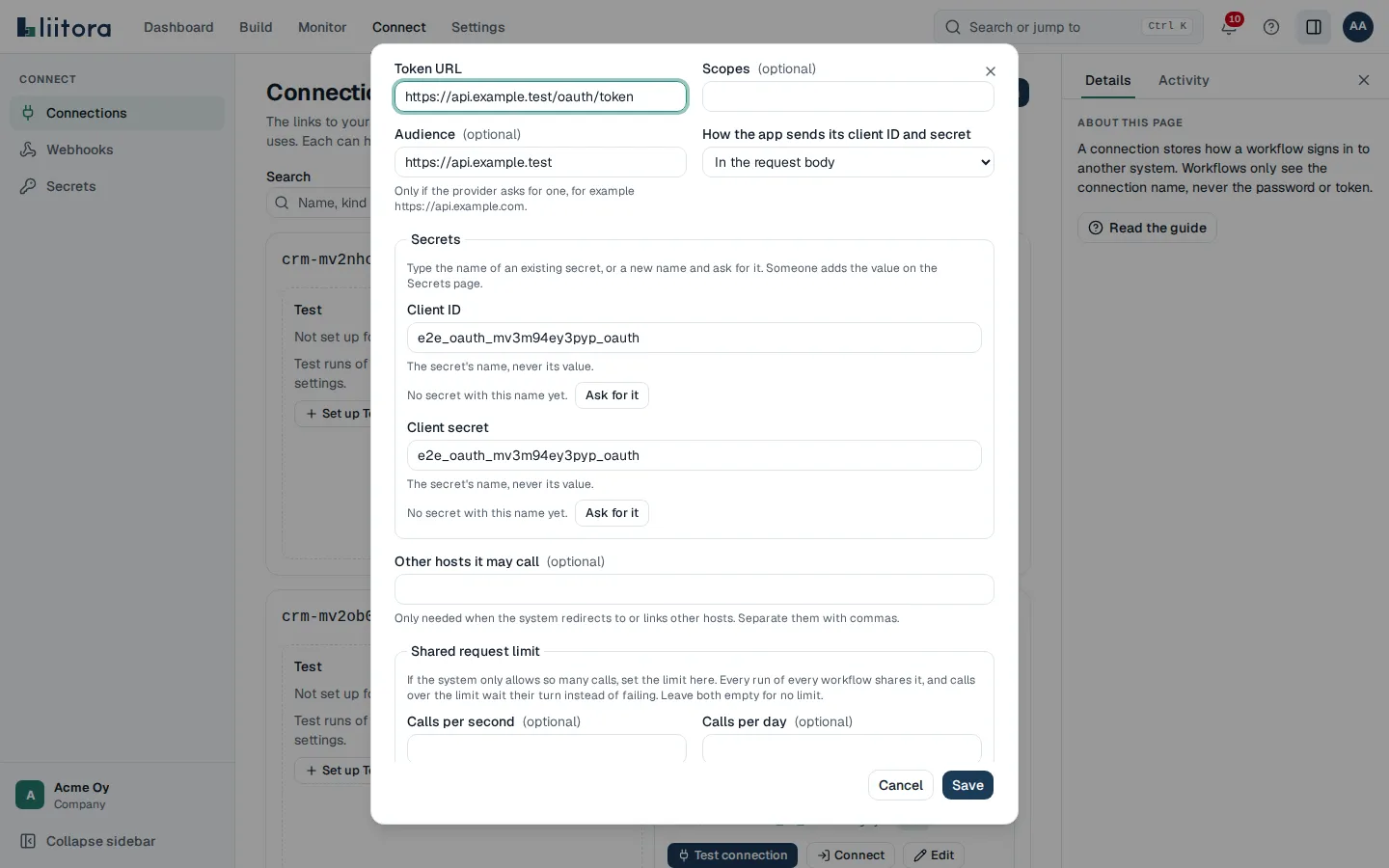
The sign-in methods are No sign-in, API key, Username and password, Bearer token, OAuth 2 (client credentials) and OAuth 2 (authorization code). See Create a connection.
When there are none, the page says No connections yet.